
#
Sub-Accounts Management
Sub-accounts let you add extra people to your Vendor Membership so they can help manage your B2BEA presence (company profile, listings, events, and thought leadership).
There are two sub-account user types:
- Manager: Can manage content, but cannot add/remove sub-accounts.
- Admin: Can manage content and can also add/remove sub-accounts.
Note Sub-accounts are not Academy learning seats. They are member seats for managing listings and site content.
#
Where To Find Sub-Accounts
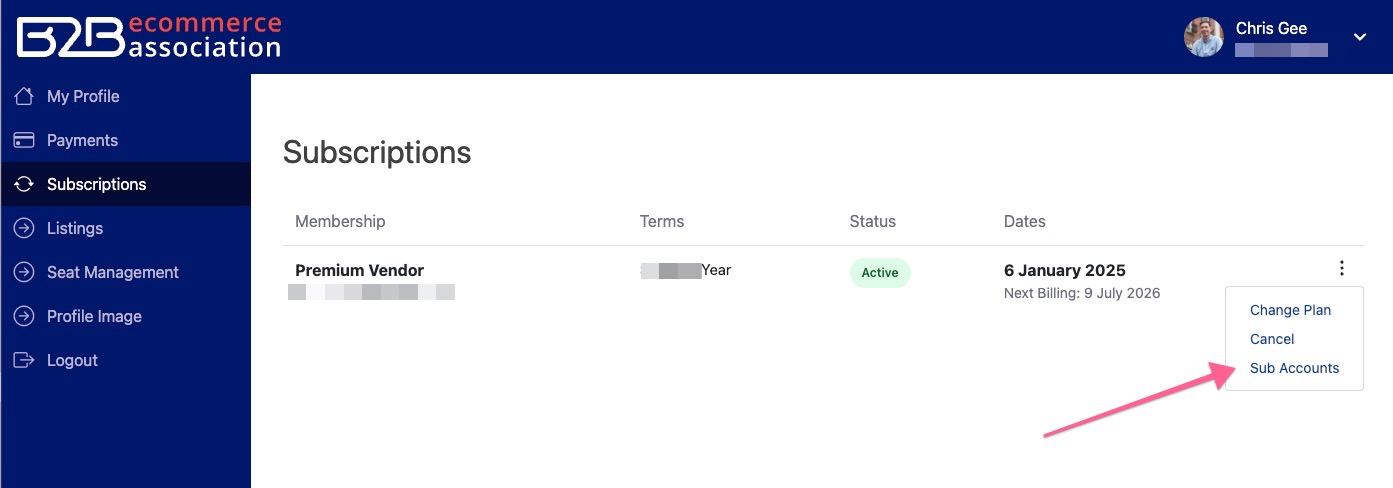
Sub-accounts are managed from your account subscriptions screen:
- Go to My Account
- Go to the Subscriptions tab
- Find your Vendor Membership subscription
- Click the three dots on the right and select Sub Accounts
#
Adding a Sub-Account
#
Step-by-Step Process
- Go to My Account
- Go to the subscriptions tab
- Locate the subscription for your Vendor Membership
- On the 3 dots on the right click on Sub-Accounts
#
Adding User Details
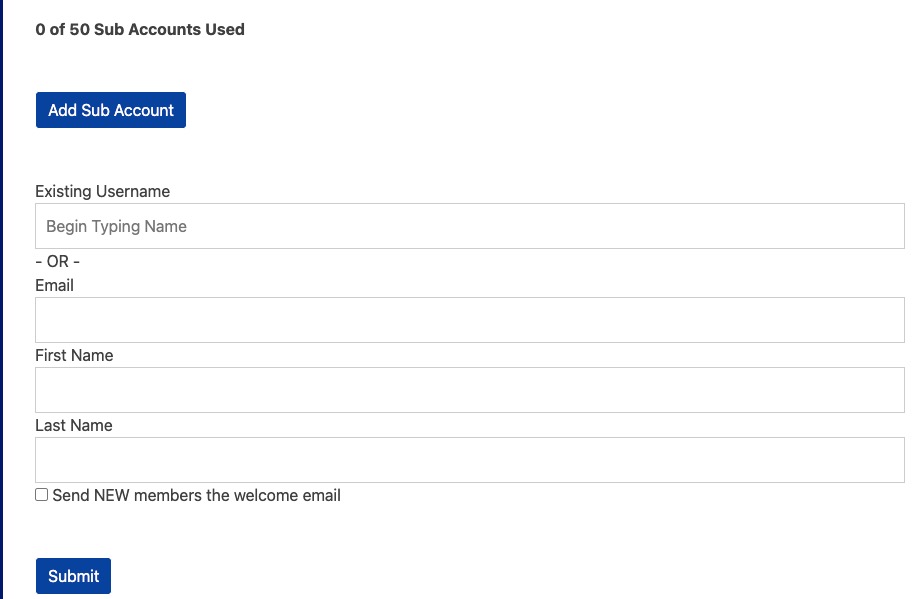
Add your new user's details and click Submit:
- Existing User: If the user already has a website login, enter their email in the existing username field
- New User: Enter their email, first and last name. Choose "Send NEW member the welcome email" if you would like them to receive the same welcome email you received
#
Choosing A User Type
When you add a sub-account, choose a User Type:
- Manager: Best for team members who only need to manage listings/content.
- Admin: Best for team members who also need to add/remove sub-accounts.
You can change a user’s type later from the Sub Accounts screen.
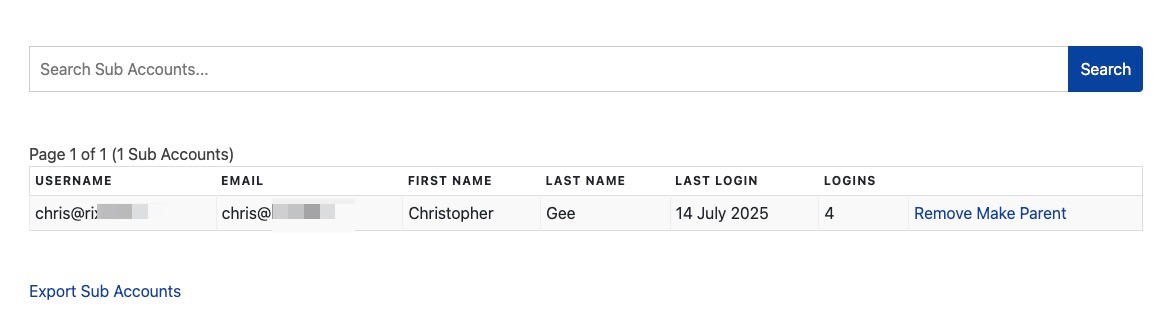
Once added you will see them below in the grid.
#
Changing User Type (Manager/Admin)
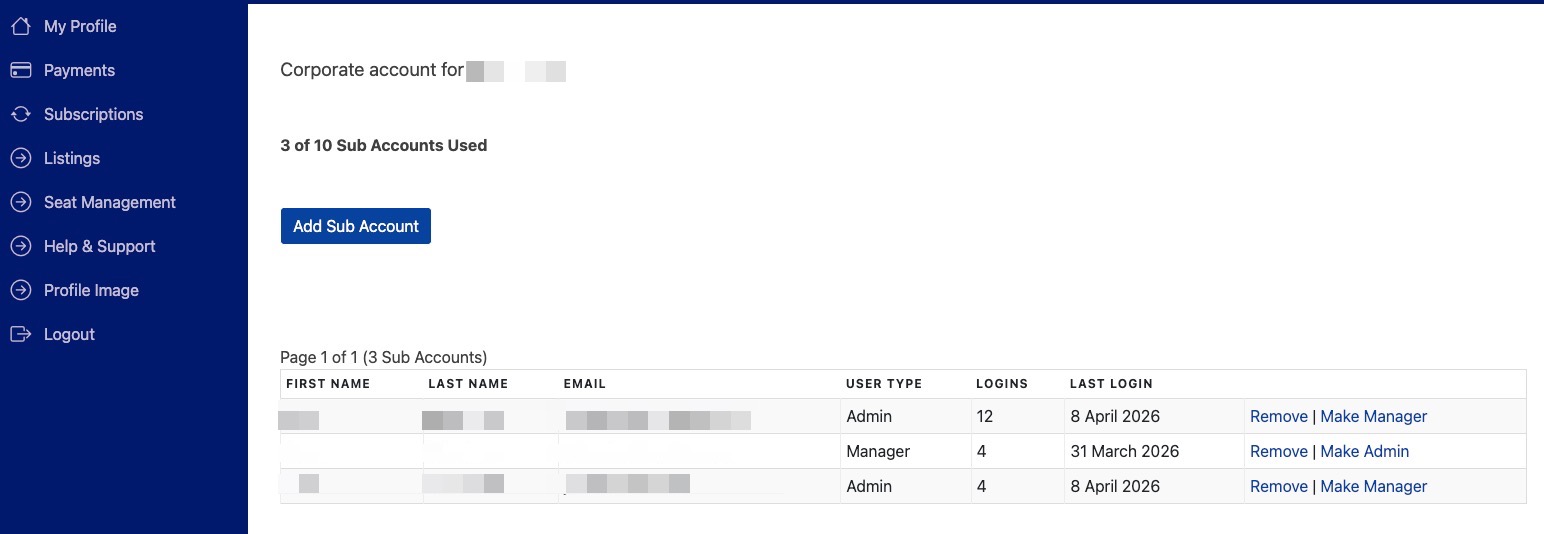
Admins and the corporate owner can change another user’s type.
- Open Sub Accounts from the Vendor Membership (three dots menu)
- Find the user in the table
- Use the action:
- Make Admin: Promote a Manager to Admin
- Make Manager: Demote an Admin to Manager
Note You cannot change the user type of the corporate parent (the membership owner).
#
Transferring Ownership of the Membership
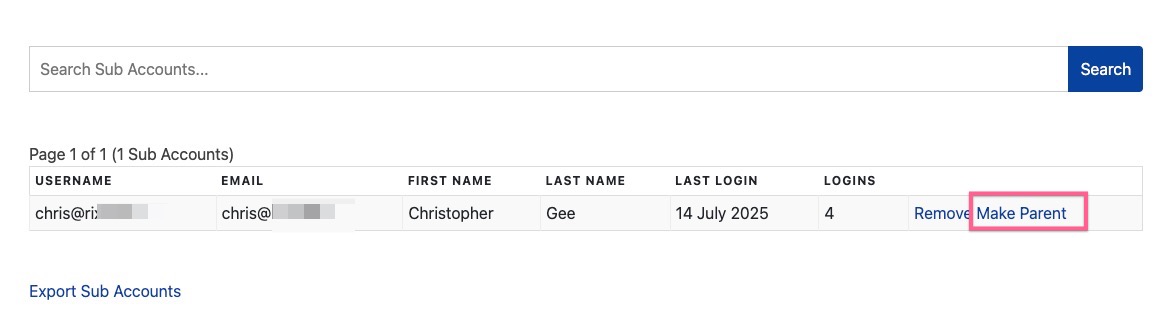
You can promote a sub-account to be the owner of the account should you be leaving.
- Go to My Account
- Go to the subscriptions tab
- Locate the subscription for your Vendor Membership
- On the 3 dots on the right click on Sub-Accounts
- Locate the member in the grid or search for them
- Click on "Make Parent"
#
Removing a Sub-Account
- Go to My Account
- Go to the subscriptions tab
- Locate the subscription for your Vendor Membership
- On the 3 dots on the right click on Sub-Accounts
- Locate the member in the grid
- Click on "Remove"
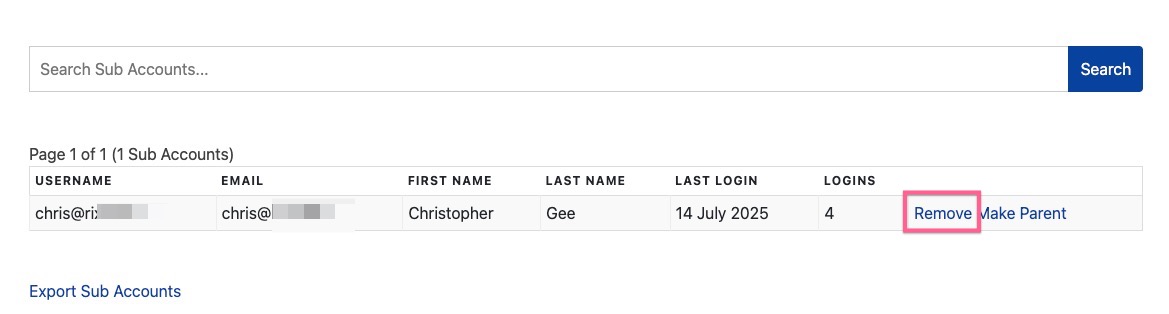
Note: This does not remove their account - it simply removes them as a sub-account of your membership. The user will have access to any other memberships they belong to. If there are no active memberships they will become a "Network Member".
#
Permissions Summary
- Edit, add, and delete content
- Manage company listings
- Manage technology listings
- Manage event listings
- Manage thought leadership content||
- Add sub-accounts
- Remove sub-accounts
- Change user type (Make Admin / Make Manager)
- Edit or manage the membership settings
- Transfer ownership (unless promoted)
- Access billing information
- Modify subscription details
#
Troubleshooting
- Check this is a subscription for a vendor membership
- Check the membership is still active
- You may be a Manager and therefore cannot add/remove sub-accounts (ask an Admin or the owner)
- Contact us if you still cannot see it